

Creating your own VPN server doesn’t have to be complicated. With WireGuard, one of the fastest and most secure VPN protocols available today, and Docker, you can deploy a fully functional VPN server in minutes.
In this tutorial, you’ll learn how to set up a self-hosted WireGuard VPN server using WG-Easy, a web-based management interface that simplifies client configuration and administration.
This guide is ideal for developers, homelab enthusiasts, and privacy-focused users.
Why Use WireGuard for Your Own VPN?
WireGuard is designed to be:
- ⚡ Extremely fast and lightweight
- 🔐 Secure by default (modern cryptography)
- 🧠 Easy to audit and maintain
- 🐳 Perfect for Docker-based deployments
Running your own VPN gives you full control over your data and eliminates the need for third-party VPN providers.
Requirements
Before you begin, make sure you have:
- A Linux server (Ubuntu or Debian recommended)
- Docker and Docker Compose installed
- Root or sudo access
- Open ports:
- 51820/UDP (WireGuard)
- 51821/TCP (WG-Easy Web UI)
- A public IP address or domain name (optional but recommended)
Step 1 – Install Docker on Your Server
Update your system:
sudo apt updateInstall required packages:
sudo apt install -y apt-transport-https ca-certificates curl software-properties-commonAdd Docker’s GPG key and repository:
curl -fsSL https://download.docker.com/linux/ubuntu/gpg | sudo apt-key add -
sudo add-apt-repository \
"deb [arch=amd64] https://download.docker.com/linux/ubuntu $(lsb_release -cs) stable"
Install Docker and Docker Compose:
sudo apt update
sudo apt install -y docker-ce docker-compose
Enable Docker at boot:
sudo systemctl enable docker
sudo systemctl start docker
(Optional) Run Docker without sudo:
sudo usermod -aG docker $USERLog out and log back in.
Step 2 – Deploy WireGuard with WG-Easy (Docker)
WG-Easy provides a clean web interface for managing WireGuard clients.
Create a directory:
mkdir -p ~/wg-easy
cd ~/wg-easy
Generate a password hash:
docker run ghcr.io/wg-easy/wg-easy wgpw YOUR_PASSWORDRun the container:
docker run -d \
  --name wg-easy \
  -e LANG=en \
  -e WG_HOST=YOUR_SERVER_IP_OR_DOMAIN \
  -e PASSWORD_HASH=YOUR_GENERATED_HASH \
  -e WG_PORT=51820 \
  -e PORT=51821 \
  -v ~/.wg-easy:/etc/wireguard \
  -p 51820:51820/udp \
  -p 51821:51821/tcp \
  --cap-add=NET_ADMIN \
  --cap-add=SYS_MODULE \
  --sysctl="net.ipv4.ip_forward=1" \
  --sysctl="net.ipv4.conf.all.src_valid_mark=1" \
  --restart unless-stopped \
  ghcr.io/wg-easy/wg-easy
Step 3 – Access the WireGuard Web Interface
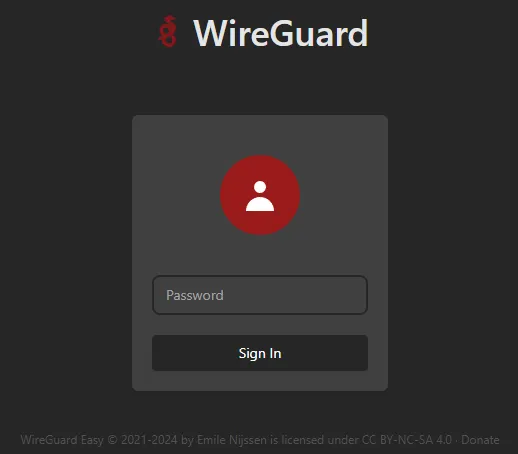
Open your browser:
http://YOUR_SERVER_IP:51821From the dashboard you can:
- Create VPN clients
- Download config files
- Generate QR codes for mobile devices
- Enable or disable clients instantly
How to Connect Devices to Your VPN
- Android / iOS:
Install the WireGuard app and scan the QR code. - Windows / macOS / Linux:
Import the.conffile into the WireGuard client.
Connection is instant.
Best VPS Providers for WireGuard
These providers usually allow WireGuard ports by default:
| Provider | Entry Price |
|---|---|
| RackNerd | ~$5/month |
| Contabo | ~€5/month |
| OVH | ~€6/month |
| DartNode | ~$5/month |
| RareCloud | ~$6/month |
(Prices may vary)
Security Tips
- Use strong admin passwords
- Keep your server updated
- Restrict access to the WG-Easy web UI if possible
- Use a firewall (UFW or iptables)
Frequently Asked Questions (FAQ)
Is WireGuard better than OpenVPN?
Yes. WireGuard is faster, simpler, and uses modern cryptography.
Can I use this VPN on my phone?
Yes. The WireGuard mobile app supports QR codes.
Do I need a domain name?
No. A public IP is enough, but a domain or DDNS improves usability.
Is Docker required?
Not strictly, but Docker makes the setup faster and cleaner.
Conclusion
With Docker and WG-Easy, deploying a WireGuard VPN server takes less than 5 minutes. This setup is fast, secure, lightweight, and perfect for anyone who wants full control over their VPN infrastructure.
If you care about privacy, performance, and simplicity, this is one of the best self-hosted VPN solutions available today.
Want to improve your security and protect your accounts?
Read more Security & Privacy articles →