

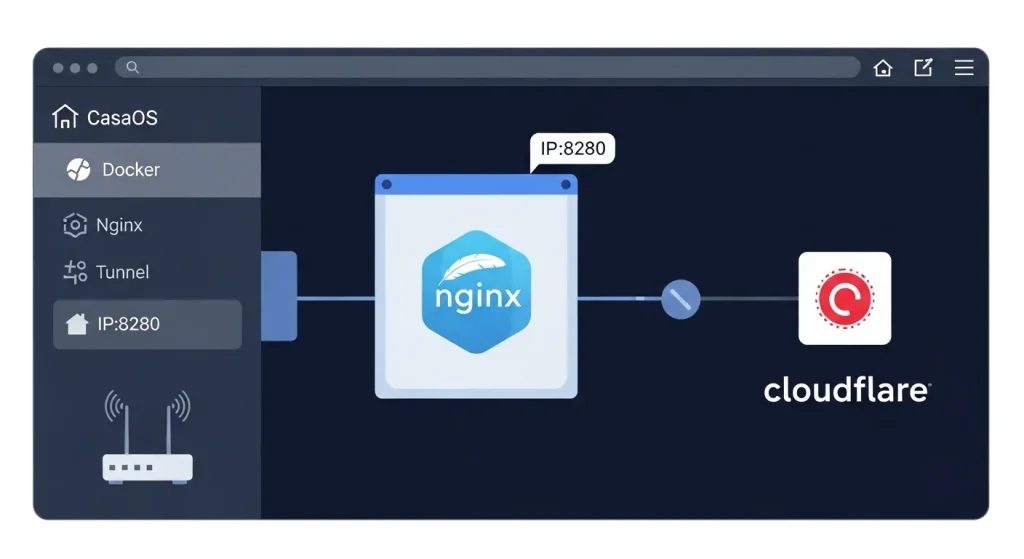
Do you want to serve a static website on CasaOS using NGINX with Docker Compose, even if your ISP blocks your public IP?
In this simple and direct tutorial, you’ll learn how to do this using a custom port (e.g., 8280) and, optionally, how to make your site accessible via Cloudflare Tunnel.
What You Will Do
- Use the official
nginx:alpineimage (lightweight & fast) - Create a local folder with your HTML files
- Run everything with Docker Compose
- Access the site at
http://<your-ip>:8280 - Optionally expose via Cloudflare Tunnel
Folder Structure
Create the project folder:
mkdir -p /DATA/AppData/nginx-alpine
cd /DATA/AppData/nginx-alpine
Create your index.html (or copy your site into the folder):
<!DOCTYPE html>
<html>
<head>
  <title>Welcome to nginx!</title>
  <style>
    body { width: 35em; margin: 0 auto; font-family: Tahoma, Verdana, Arial, sans-serif; }
  </style>
</head>
<body>
  <h1>Welcome to nginx!</h1>
  <p>If you see this page, the NGINX web server is successfully installed and working.</p>
</body>
</html>
⚙️ docker-compose.yml
Save this content as docker-compose.yml inside your project folder:
version: "3.8"

services:
  nginx:
    image: nginx:alpine
    container_name: nginx-alpine
    ports:
      - "8280:80"
    volumes:
      - /DATA/AppData/nginx-alpine:/usr/share/nginx/html:ro
    restart: unless-stopped
This compose file:
- exposes port 8280 on your local CasaOS IP
- serves all files from
/DATA/AppData/nginx-alpine - restarts automatically on reboot
▶️ Starting the Container
Run in terminal:
cd /DATA/AppData/nginx-alpine
docker compose up -d
This will pull the nginx:alpine image and start the container in the background.
Accessing the Site
Now open in your browser:
http://<YOUR_IP>:8280Replace <YOUR_IP> with your CasaOS device IP.
Optional: Integrate With Cloudflare Tunnel
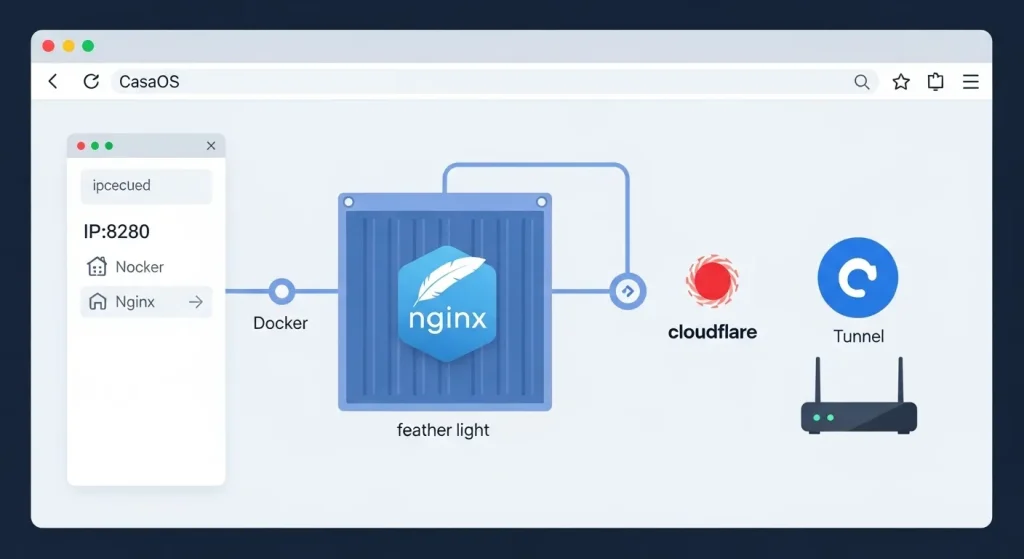
If your ISP blocks public IP access, you can use Cloudflare Tunnel to expose your site via a domain.
Example config.yml for cloudflared:
tunnel: my-tunnel
credentials-file: /root/.cloudflared/my-tunnel.json

ingress:
  - hostname: yourdomain.com
    service: http://localhost:8280
  - service: http_status:404
This will route traffic from your public domain to the NGINX container running at port 8280.
❓ FAQ
What is nginx:alpine?
A super-lightweight version of the official NGINX image (~5MB), based on Alpine Linux — ideal for local servers and homelabs.
Can I use SSL with Cloudflare?
Yes! Cloudflare provides HTTPS even if your NGINX serves only over HTTP.
Do I need to expose port 80?
No — in this example, we chose port 8280 to avoid conflicts with other CasaOS apps.
Does this work on Orange Pi / Raspberry Pi?
Yes — as long as your OS supports Docker (e.g., Debian/Armbian), it works perfectly.
✅ Conclusion
You now have a lightweight, fast, and reliable web server using NGINX and Docker Compose on CasaOS.
This setup is ideal for serving:
- static sites
- local dashboards
- files on your network
…and works even behind ISP blocks when used with Cloudflare Tunnel.
Want to master Docker in homelab environments?
Check out all Docker & Containers tutorials →