
If you are using Syncthing on CasaOS and see errors like:
permission denied
folder path missing
failed to create folder root directory
don’t worry — this is a very common issue related to container permissions and volume mapping.
In this guide, you’ll learn exactly how to fix Syncthing permission denied errors on CasaOS, step by step, in a safe and reliable way.
🔍 Why This Error Happens
Syncthing runs inside a Docker container on CasaOS.
If the container doesn’t have permission to read or write to the selected folder on the host system, CasaOS blocks the operation.
This usually happens due to:
- Incorrect volume mapping
- Missing folders on the host
- Wrong UID/GID permissions
- Read-only mounts
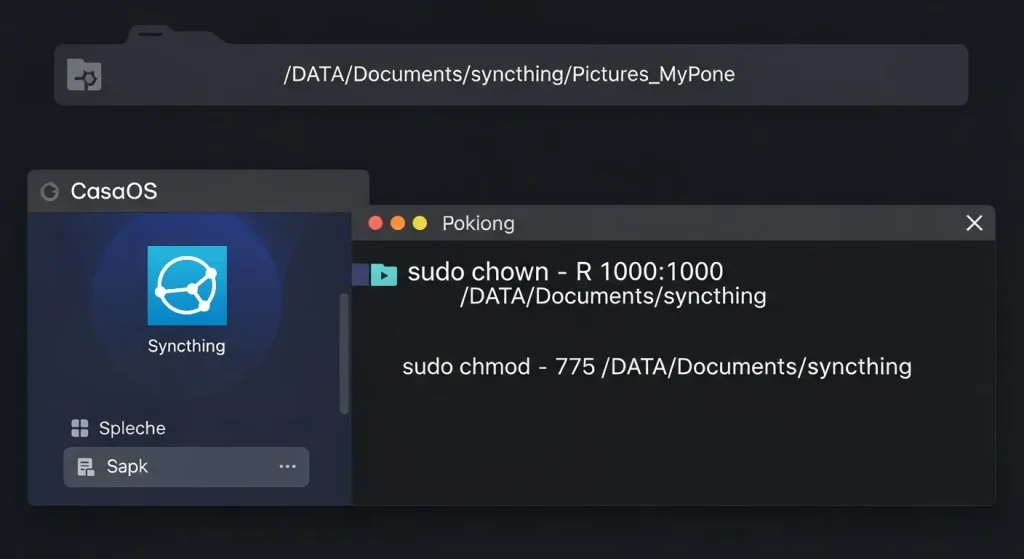
🛠 Step 1: Configure the Syncthing Volume Correctly in CasaOS
- Open CasaOS Dashboard
- Go to Apps → Syncthing
- Click Edit
- Scroll to Volumes
- Add or verify the following mapping:
| Setting | Value |
|---|---|
| Host Path | /DATA/Documents/syncthing |
| Container Path | /sync |
| Access Mode | Read & Write |
⚠️ Important:
Make sure the folder you want to sync already exists inside this path.
Example:
/DATA/Documents/syncthing/Pictures_MyPhoneIf the folder does not exist, create it manually.
🧰 Step 2: Fix Folder Permissions on CasaOS
Open the Terminal or SSH into your CasaOS server and run:
sudo chown -R 1000:1000 /DATA/Documents/syncthing
sudo chmod -R 775 /DATA/Documents/syncthing
🔎 What These Commands Do
1000:1000→ Default user and group ID used by most CasaOS containers775→ Full access for owner and group, safe access for others
This ensures Syncthing can create, modify, and sync files.
🔍 Optional: Check the Container UID
If you want to confirm which UID your Syncthing container uses:
docker inspect syncthing | grep -i uidIf the UID is different, replace 1000:1000 with the correct values.
🔄 Step 3: Restart Syncthing
After fixing permissions, restart the container:
Option 1 – CasaOS UI
- Open Syncthing
- Click Restart
Option 2 – Terminal
docker restart syncthingThis reloads the permissions properly.
⚠️ Bonus Tip: Avoid Spaces and Special Characters
Some folder names may cause issues inside containers.
✅ Recommended
Pictures_MyPhone
Android_Backups
❌ Avoid
Pictures My Phone
Photos+Videos
Simple folder names = fewer errors.
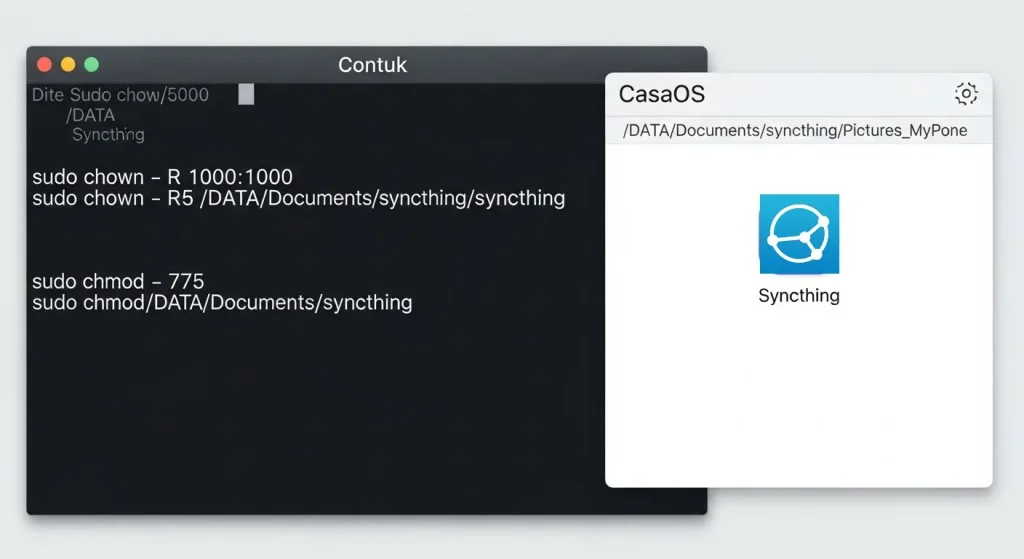
✅ Final Result
After completing these steps, you should be able to:
✔ Fix Syncthing permission denied errors
✔ Sync folders without warnings
✔ Avoid future CasaOS permission issues
Your Syncthing setup on CasaOS should now run smoothly 🚀
❓ Frequently Asked Questions (FAQ)
Why does Syncthing show “folder path missing” on CasaOS?
Because the container cannot access or create the folder due to missing permissions or incorrect volume mapping.
Is it safe to use chmod 775?
Yes. It is safer than 777 and recommended for Docker containers.
Does this fix work on ZimaBoard and Orange Pi?
Yes. This solution works on ZimaBoard, Orange Pi, Mini PCs, and x86 servers running CasaOS.
Want to master Docker in homelab environments?
Check out all Docker & Containers tutorials →