
Have you ever set up Docker containers on your server, rebooted, and wondered: “Will Docker start on its own?” This is a common question for server administrators, developers, and container enthusiasts.
In this practical guide, you’ll learn how to check if Docker is configured to start automatically on Ubuntu Server and how to ensure your containers also restart after a reboot.

🧰 Step 1 — Check if Docker Is Set to Start on Boot
On Ubuntu systems, Docker is managed by systemd. To verify whether the Docker service is enabled to start automatically when the system boots:
sudo systemctl status dockerPossible Results
- ✅ enabled → Docker is configured to start at boot
- ❌ disabled → Docker will NOT start automatically after a reboot
If Docker is disabled, enable it with:
sudo systemctl enable dockerThis command tells the system to start Docker every time the server boots.
🐳 Step 2 — Check Container Restart Policies
Even if Docker starts automatically on boot, your containers might not restart by themselves unless a restart policy is configured.
List All Containers
docker ps -aCheck the Restart Policy for a Container
docker inspect -f '{{ .HostConfig.RestartPolicy.Name }}' container_name_or_idCommon restart policies:
| Policy | Description |
|---|---|
no | Containers won’t restart automatically |
always | Restart regardless of exit reason |
unless-stopped | Restart unless manually stopped |
on-failure | Restart only on failures |
🛠 Step 3 — Configure Containers to Restart Automatically
To set a restart policy on an existing container:
docker update --restart=always container_name_or_idWhen you create a new container, set the policy directly:
docker run -d --restart=always --name my_container my_image👉 Pro Tip:
Many users prefer unless-stopped, as it respects manual stops but still restarts containers after reboots.
🧾 Step 4 — Optional Script to Review Policies
If you want a quick overview of all containers and their restart policies, you can use this bash script:
#!/bin/bash

echo "Containers and Restart Policies:"
docker ps -a --format "table {{.Names}}\t{{.Status}}\t{{.RunningFor}}"

for c in $(docker ps -aq); do
    policy=$(docker inspect -f '{{ .HostConfig.RestartPolicy.Name }}' $c)
    echo "Container: $(docker inspect -f '{{ .Name }}' $c | sed 's/\///') → RestartPolicy: $policy"
done
Save as check-docker-restart.sh, make it executable, and run:
chmod +x check-docker-restart.sh
./check-docker-restart.sh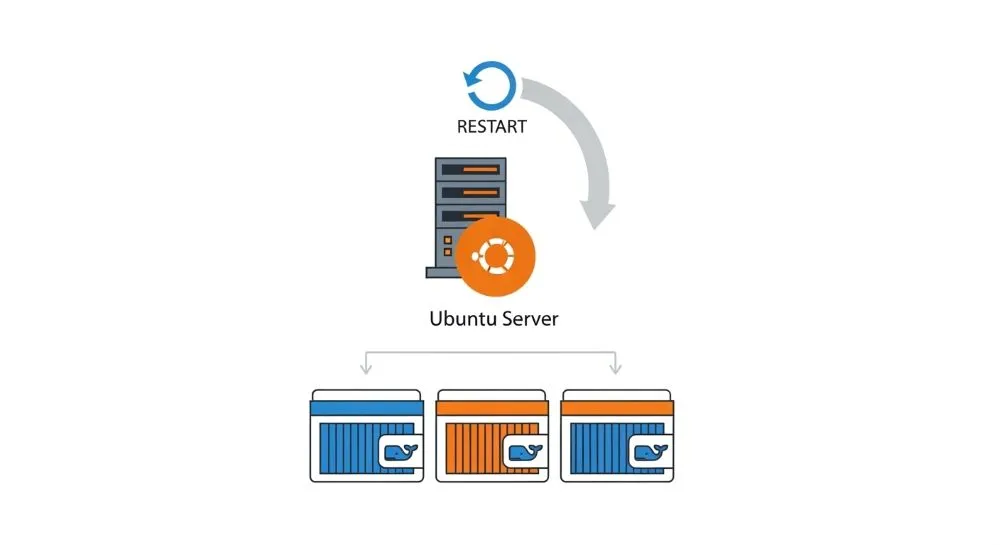
⚡ Why Automatic Start Matters
Configuring Docker and your containers to restart automatically brings several benefits:
✔ Less manual intervention after reboots
✔ Better reliability for production environments
✔ Higher uptime for services and applications
✔ Reduced downtime on critical servers

❓ FAQ – Docker Auto-Start Questions
Does Docker start automatically on Ubuntu by default?
Not always. You must verify that the service is enabled in systemd with:
sudo systemctl enable dockerIf it’s enabled, Docker will start at boot.
Do I need to set restart policies for each container?
Yes. Docker starting on boot doesn’t guarantee containers will restart; each needs a restart policy.
What restart policy should I use?
In most cases, unless-stopped is recommended — it restarts containers after system reboots but respects manual stops.
Conclusion
Ensuring Docker and your containers start automatically on your Ubuntu Server is essential for reliability, uptime, and smooth operation. With just a few commands, you can verify the configuration and make your system resilient to reboots — perfect for production environments and homelabs alike.

Want to master Docker in homelab environments?
Check out all Docker & Containers tutorials →