
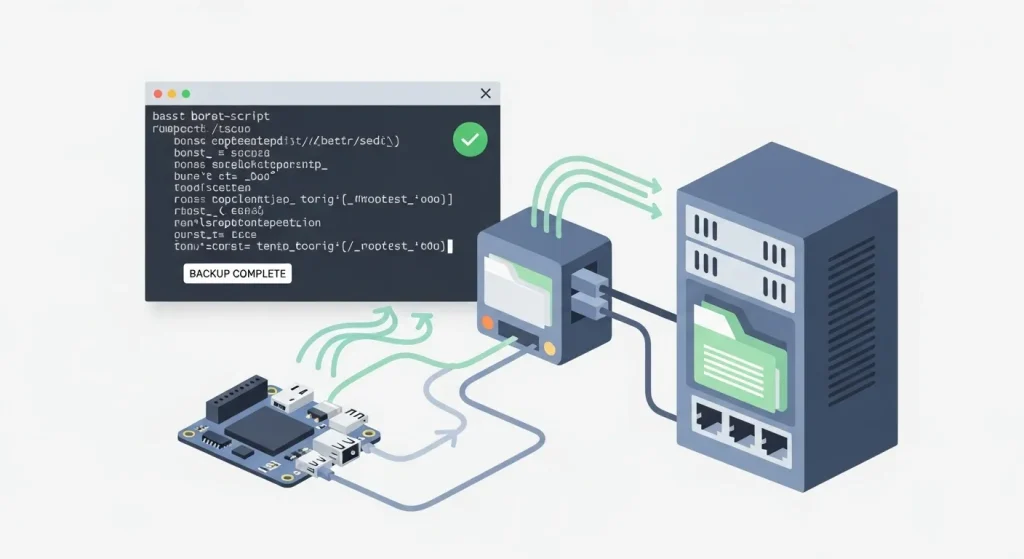
If you use CasaOS on a Raspberry Pi, Orange Pi, or any home server, you probably know how critical it is to protect your data with automated backups. In this practical tutorial, you’ll learn how to create a ready-to-use backup script that copies CasaOS AppData to a local NFS or SMB server, how to schedule daily backups with cron, and how to keep only the most recent backup to save space on your storage.
🧠 What You Will Learn
✔ How to create an automatic CasaOS backup script
✔ How to copy data to a local NFS/SMB share
✔ How to automate the process with cron
✔ How to implement an automatic cleanup of older backups
🗂 Ready-to-Use CasaOS Backup Script
Create a file named backup_data_appdata_casaos.sh and paste the following content:
#!/bin/bash
# Automatic CasaOS backup to local/NFS/SMB server
# Keeps only the latest backup (1)

export PATH=/usr/local/sbin:/usr/local/bin:/usr/sbin:/usr/bin:/sbin:/bin

# Current date for backup
DATA=$(/bin/date +%d-%m-%Y)
# Paths
SOURCE="/DATA/AppData"
DEST="/mnt/192.168.31.167/SHARE2TB/bkpOPI03/CasaOS/$DATA"
BACKUP_FOLDER="/mnt/192.168.31.167/SHARE2TB/bkpOPI03/CasaOS"

# Check if destination is mounted
if ! mountpoint -q /mnt/192.168.31.167/SHARE2TB; then
    echo "Error: Destination folder not mounted."
    exit 1
fi

# Create backup folder
/bin/mkdir -p "$DEST"
# Copy data
/usr/bin/rsync -avh --delete "$SOURCE/" "$DEST/"

# Keep only the latest backup
/usr/bin/find "$BACKUP_FOLDER" -mindepth 1 -maxdepth 1 -type d | /usr/bin/sort -r | /usr/bin/tail -n +2 | /usr/bin/xargs rm -rf

echo "Backup completed successfully at $DEST. Only the latest backup is kept."
Explanation:
- This script copies the CasaOS AppData folder to your NFS/SMB server.
- It uses
rsyncfor efficient file transfer. - After backing up, it removes older backups automatically, keeping only the newest one.
🛠 Make the Script Executable
Run:
chmod +x /DATA/Documents/scripts/backup_data_appdata_casaos.shReplace the path with wherever you saved the script.
⏰ Scheduling Automatic Backups with Cron
You can schedule the script to run automatically every day at 3:00 AM:
1️⃣ Edit the root’s crontab:
sudo crontab -e2️⃣ Add this line:
0 3 * * * /DATA/Documents/scripts/backup_data_appdata_casaos.sh >> /var/log/backup_casaos.log 2>&1You can adjust the schedule by changing the cron expression (0 3 * * * means 3:00 AM daily).
📌 Mounting NFS/SMB Automatically (Optional)
If your backup destination isn’t already mounted automatically, add one of the lines below to /etc/fstab so it mounts at boot:
✔ NFS
192.168.31.167:/SHARE2TB /mnt/192.168.31.167/SHARE2TB nfs defaults 0 0✔ SMB/CIFS
# Replace USER and PASSWORD with your credentials
//192.168.31.167/SHARE2TB /mnt/192.168.31.167/SHARE2TB cifs username=YOUR_USER,password=YOUR_PASS,iocharset=utf8,sec=ntlm 0 0
Mount it manually to verify:
sudo mount -aOnce mounted, the script can run normally.
🧪 Quick Test
- Run the script manually to confirm it works:
sudo /DATA/Documents/scripts/backup_data_appdata_casaos.sh - Check the backup folder on your NFS/SMB share.
- Review the log for errors:
cat /var/log/backup_casaos.log
✅ Conclusion
With this setup, you now have a simple and efficient automated backup system for CasaOS that:
✔ Runs daily at your chosen schedule
✔ Saves AppData safely to your NFS/SMB server
✔ Keeps only the most recent backup to save space
This is ideal for home servers, homelabs, Raspberry Pi/Orange Pi installs, and local Linux servers.
❓ FAQ — Frequently Asked Questions
Can I keep more than one backup?
Yes — change tail -n +2 to tail -n +N where N equals backups kept +1 (e.g., tail -n +4 keeps the 3 most recent).
Can I backup to an external USB HDD instead?
Absolutely — just update the DEST path to your USB mount point.
Will this work on Raspberry Pi, Orange Pi, Debian, or Ubuntu?
Yes. It works on any Linux system with rsync and cron.
Want to master Docker in homelab environments?
Check out all Docker & Containers tutorials →