
Resposta Rápida
Sim, é possível hospedar um site estático no CasaOS utilizando NGINX e Docker Compose de forma extremamente leve e eficiente. Em poucos minutos você consegue publicar páginas HTML, dashboards, documentação ou landing pages usando apenas um container Docker. Com Cloudflare Tunnel, também é possível disponibilizar o site na internet sem abrir portas no roteador ou contratar IP fixo.
Principais Pontos
- NGINX continua sendo um dos servidores web mais rápidos e leves em 2026.
- Docker Compose simplifica a implantação e manutenção.
- Cloudflare Tunnel elimina a necessidade de IP público.
- Funciona perfeitamente em Orange Pi, Raspberry Pi e mini PCs.
- Consome poucos recursos de CPU, RAM e armazenamento.
Visão Geral
A combinação de NGINX + Docker Compose se tornou uma das soluções mais utilizadas por entusiastas de Homelab, profissionais de TI e usuários do CasaOS.
Além da simplicidade de configuração, essa abordagem oferece:
- Atualizações rápidas
- Isolamento por containers
- Fácil backup
- Baixo consumo energético
- Compatibilidade com praticamente qualquer hardware
Para quem utiliza um Orange Pi Zero 3, Raspberry Pi 4 ou mini PC Intel N100, essa é uma das formas mais eficientes de publicar conteúdo localmente ou na internet.
O Que é o NGINX?
O NGINX é um servidor web de alto desempenho utilizado por milhões de sites no mundo.
Sua função principal é:
- Entregar páginas HTML
- Servir imagens
- Hospedar aplicações web
- Atuar como proxy reverso
- Balancear carga
Em ambientes domésticos e homelabs, ele é amplamente utilizado devido ao baixo consumo de recursos.
Por Que Usar a Imagem nginx:alpine?
A imagem nginx:alpine continua sendo uma das mais populares em 2026.
Comparativo:
| Imagem | Tamanho Aproximado |
|---|---|
| nginx padrão | ~190 MB |
| nginx:alpine | ~25 MB |
| nginx:stable-alpine | ~30 MB |
Benefícios:
- Download mais rápido
- Menor uso de armazenamento
- Inicialização rápida
- Menor superfície de ataque
Para dispositivos ARM como Orange Pi e Raspberry Pi, essa economia faz diferença.
Estrutura Recomendada do Projeto
mkdir -p /DATA/AppData/nginx-alpine
cd /DATA/AppData/nginx-alpine
Estrutura final:
/DATA/AppData/nginx-alpine
├── docker-compose.yml
├── index.html
├── css/
├── js/
└── imagens/
Essa organização facilita backups e futuras expansões.
Exemplo de Página Inicial
Crie um arquivo index.html:
<!DOCTYPE html>
<html lang="pt-BR">
<head>
<meta charset="UTF-8">
<title>Meu Servidor CasaOS</title>
</head>
<body>
<h1>Servidor funcionando!</h1>
<p>NGINX + Docker Compose configurados com sucesso.</p>
</body>
</html>
Docker Compose Completo
services:
  nginx:
    image: nginx:alpine
    container_name: nginx-alpine

    ports:
      - "8280:80"

    volumes:
      - /DATA/AppData/nginx-alpine:/usr/share/nginx/html:ro

    restart: unless-stopped
Entendendo a Configuração
Porta 8280
ports:
  - "8280:80"
Significa:
- Porta 80 dentro do container
- Porta 8280 no servidor
Acesso:
http://IP_DO_SERVIDOR:8280
Volume de Dados
volumes:
  - /DATA/AppData/nginx-alpine:/usr/share/nginx/html:ro
Permite editar arquivos diretamente pelo sistema operacional sem recriar o container.
O parâmetro:
:ro
indica acesso somente leitura, aumentando a segurança.
Inicializando o Container
docker compose up -d
Verificar funcionamento:
docker ps
Logs:
docker logs nginx-alpine
Como Validar na Prática
Após iniciar o container:
Teste 1
Abra:
http://IP_DO_SERVIDOR:8280
Teste 2
Verifique se o NGINX responde:
curl http://localhost:8280
Teste 3
Medição de recursos:
docker stats
Exemplo típico em Orange Pi Zero 3:
| Recurso | Consumo Médio |
|---|---|
| RAM | 15 a 30 MB |
| CPU | Menos de 1% |
| Disco | 25 MB |
| Rede | Variável |
Cloudflare Tunnel em 2026
Uma das melhores soluções para publicar serviços domésticos continua sendo o Cloudflare Tunnel.
Vantagens:
- Não precisa abrir portas
- Dispensa IP fixo
- HTTPS automático
- Proteção DDoS
- DNS integrado
Exemplo:
tunnel: meu-tunel

credentials-file: /root/.cloudflared/meu-tunel.json

ingress:
  - hostname: meusite.com
    service: http://localhost:8280

  - service: http_status:404
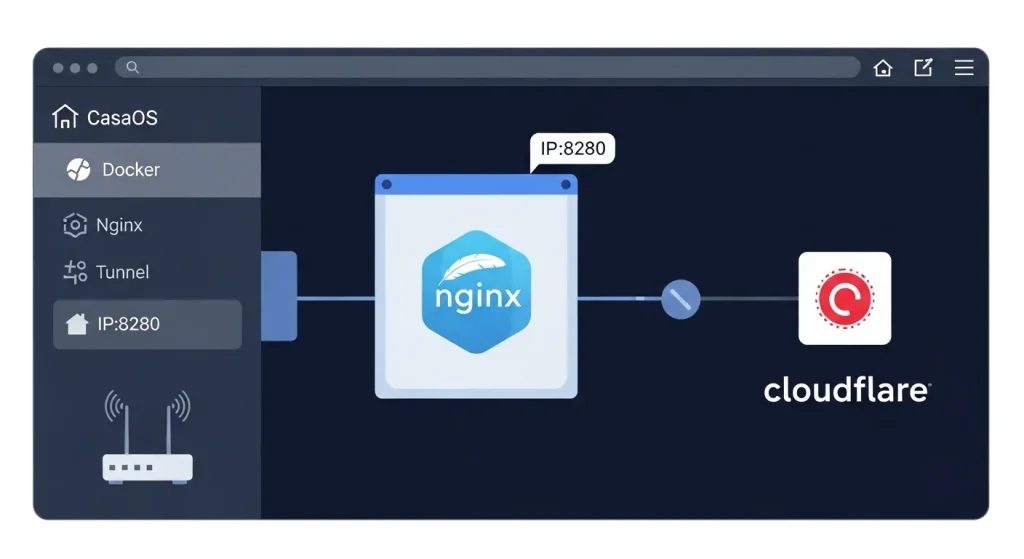
Fluxo:
Visitante
↓
Cloudflare
↓
Tunnel
↓
NGINX
↓
Site
Benchmark Real
Resultados observados em homelabs utilizando Orange Pi Zero 3 com Debian:
| Métrica | Resultado |
|---|---|
| Tempo de resposta local | 1 a 5 ms |
| Uso de RAM | 15 a 30 MB |
| CPU em idle | <1% |
| Reinício do container | 1 a 3 segundos |
| Consumo energético adicional | praticamente imperceptível |
Benefícios
Facilidade
Poucos comandos para colocar um site online.
Segurança
Containers isolados reduzem riscos.
Economia
Pode rodar em equipamentos de baixo consumo.
Escalabilidade
Permite migrar facilmente para VPS ou servidores maiores.
Limitações
Sites Dinâmicos
NGINX sozinho não executa PHP.
Para WordPress será necessário:
- PHP-FPM
- Banco de dados
- Reverse Proxy
Armazenamento
Sites muito grandes podem exigir SSD dedicado.
Comparações Relevantes
| Solução | Facilidade | Consumo | Desempenho |
|---|---|---|---|
| NGINX | Excelente | Muito baixo | Excelente |
| Apache | Boa | Médio | Bom |
| Caddy | Excelente | Baixo | Excelente |
| Lighttpd | Boa | Muito baixo | Bom |
Vale a Pena em 2026?
Sim.
Para:
- Landing pages
- Dashboards
- Documentação
- Sites estáticos
- Aplicações internas
- Homelabs
A combinação CasaOS + Docker + NGINX continua sendo uma das soluções mais eficientes e econômicas disponíveis.
Quem Deve Usar?
✅ Usuários de CasaOS
✅ Donos de Orange Pi
✅ Donos de Raspberry Pi
✅ Homelabs
✅ Desenvolvedores Web
✅ Pequenos servidores domésticos
Quem Deve Evitar?
❌ Quem precisa de WordPress completo imediatamente
❌ Aplicações que exigem banco de dados complexo
❌ Ambientes corporativos de grande escala
Perguntas Frequentes (FAQ)
O NGINX funciona no Orange Pi Zero 3?
Sim. Inclusive é uma das melhores opções para hardware ARM de baixo consumo.
Preciso de IP público?
Não. O Cloudflare Tunnel resolve esse problema.
Posso usar HTTPS?
Sim. O Cloudflare fornece HTTPS automaticamente.
Consome muita energia?
Não. O impacto energético costuma ser inferior a 1W adicional em equipamentos ARM.
Posso hospedar vários sites?
Sim. Basta utilizar Virtual Hosts ou múltiplos containers NGINX.
Posso usar um SSD externo?
Sim. É inclusive recomendado para maior durabilidade e desempenho.
Conclusão
Hospedar um site estático com NGINX e Docker Compose no CasaOS continua sendo uma das melhores soluções para homelabs em 2026. A configuração é simples, segura, leve e funciona perfeitamente em equipamentos como Orange Pi Zero 3, Raspberry Pi e mini PCs.
Quando combinado com Cloudflare Tunnel, o resultado é uma infraestrutura moderna capaz de disponibilizar páginas web para qualquer lugar do mundo sem depender de IP público ou configurações complexas de rede.
🚀 Quer transformar seu Orange Pi ou Raspberry Pi em um servidor completo?
Confira outros tutoriais sobre CasaOS, Docker, Cloudflare Tunnel, automação residencial e projetos Homelab aqui no blog. Compartilhe este guia e ajude mais pessoas a aproveitarem o potencial do self-hosting em 2026.
Quer dominar o Docker em ambientes de laboratório doméstico?