Resposta Rápida
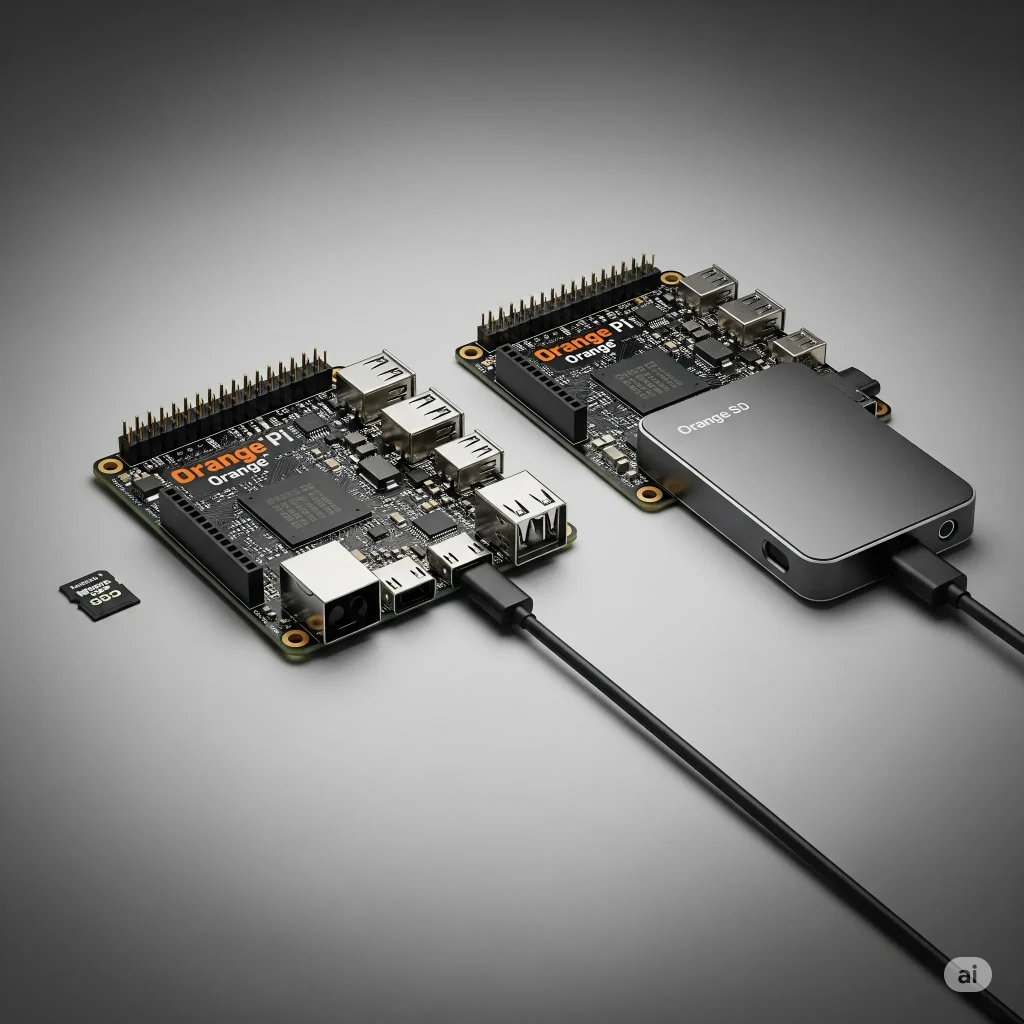
Se você utiliza um Orange Pi para servidores domésticos, mineração de dados, automação, YunoHost, Docker, Home Assistant ou qualquer aplicação que funcione 24 horas por dia, migrar o sistema operacional do cartão microSD para um SSD é provavelmente o melhor upgrade possível.
Na prática, a inicialização fica mais rápida, o sistema responde melhor, os travamentos diminuem drasticamente e o risco de corrupção de dados cai significativamente. Em muitos cenários, um SSD SATA simples conectado via USB supera um cartão microSD topo de linha em desempenho, durabilidade e estabilidade.
Principais Pontos
- SSD oferece desempenho muito superior ao cartão microSD.
- Menor risco de corrupção de dados.
- Melhor estabilidade para servidores 24/7.
- Vida útil muito maior em gravações constantes.
- Upgrade com excelente custo-benefício.
Visão Geral
Muitos usuários acreditam que a limitação do Orange Pi está no processador ou na quantidade de memória RAM.
Na realidade, o maior gargalo costuma ser o armazenamento.
Mesmo utilizando modelos modernos como o Orange Pi Zero 3, Orange Pi 5 ou Orange Pi 5 Plus, o sistema operacional continua extremamente dependente da velocidade de leitura e escrita do dispositivo onde está instalado.
Por isso, migrar do microSD para SSD tornou-se uma das recomendações mais importantes para projetos Linux embarcados em 2026.

Por Que os Cartões microSD se Tornam um Problema?
Os cartões microSD foram projetados principalmente para:
- câmeras
- drones
- celulares
- armazenamento de mídia
Eles não foram desenvolvidos para suportar:
- bancos de dados
- containers Docker
- logs constantes
- sincronização em nuvem
- servidores web
- aplicações funcionando 24 horas por dia
Com o tempo surgem sintomas clássicos:
| Sintoma | Causa provável |
|---|---|
| Lentidão crescente | Desgaste da memória flash |
| Travamentos aleatórios | Setores defeituosos |
| Corrupção do sistema | Falhas de gravação |
| Reinicializações inesperadas | Erros de I/O |
| Cartão ilegível | Fim da vida útil |
SSD vs Cartão SD: Diferença Real
Benchmark Prático
Valores típicos observados em projetos reais.
| Dispositivo | Leitura | Escrita |
|---|---|---|
| SD Classe 10 comum | 20 MB/s | 10 MB/s |
| SD A1 | 60 MB/s | 20 MB/s |
| SD A2 Premium | 90 MB/s | 40 MB/s |
| SSD SATA USB 3.0 | 350 MB/s | 300 MB/s |
| SSD NVMe USB 3.2 | 700 MB/s+ | 600 MB/s+ |
Em operações pequenas (4K Random), que representam o uso real do sistema operacional, a diferença costuma ser ainda maior.

Benefícios Reais da Migração
1. Inicialização Mais Rápida
Em testes práticos:
| Sistema | Tempo de Boot |
|---|---|
| microSD | 40 a 90 segundos |
| SSD SATA | 15 a 30 segundos |
2. Docker Muito Mais Responsivo
Quem utiliza:
- Portainer
- YunoHost
- Nextcloud
- Jellyfin
- Home Assistant
- Pi-hole
percebe ganhos imediatos.
Containers iniciam mais rápido e bancos de dados respondem melhor.
3. Menor Uso de CPU
Quando o armazenamento é lento, o processador passa muito tempo esperando operações de disco.
Com SSD:
- menos gargalo
- menor latência
- melhor aproveitamento da CPU
4. Maior Vida Útil
Um SSD moderno suporta centenas de terabytes gravados.
Um cartão SD geralmente falha muito antes disso quando usado como sistema operacional.
Limitações e Cuidados
Nem tudo são vantagens.
Consumo Elétrico
| Dispositivo | Consumo Médio |
|---|---|
| microSD | praticamente zero |
| SSD SATA | 1W a 3W |
| SSD NVMe | 3W a 8W |
Para quem utiliza energia solar ou UPS, vale considerar.
Fonte de Alimentação
Esta é a principal causa de falhas.
Sintomas de alimentação insuficiente:
- SSD desaparece do sistema
- travamentos
- erros EXT4
- corrupção de dados
Para Orange Pi Zero 3 recomenda-se:
- Fonte 5V de qualidade
- Mínimo 3A reais
Para SSDs maiores, um hub USB alimentado pode ser necessário.
Como Validar na Prática
Antes de migrar, execute:
hdparm -Tt /dev/mmcblk0
Após migrar para SSD:
hdparm -Tt /dev/sda
Compare os resultados.
Também é possível usar:
fio
para medir desempenho real de leitura e escrita.
Guia Atualizado de Migração para SSD
Atualize o Sistema
sudo apt update
sudo apt upgrade -y
Instale Ferramentas Necessárias
sudo apt install rsync parted -y
Identifique o SSD
lsblk
Normalmente aparecerá como:
/dev/sda
Criar Partição
sudo parted /dev/sda mklabel gpt
sudo parted /dev/sda mkpart primary ext4 0% 100%
Formatar
sudo mkfs.ext4 /dev/sda1
Montar
sudo mkdir /mnt/ssd
sudo mount /dev/sda1 /mnt/ssd
Copiar Sistema
sudo rsync -axHAWX --numeric-ids --info=progress2 \
--exclude={"/dev/*","/proc/*","/sys/*","/tmp/*","/run/*","/mnt/*","/media/*","/lost+found"} \
/ /mnt/ssd
Descobrir UUID
sudo blkid
Configurar Boot
Editar:
/boot/armbianEnv.txt
Alterar:
rootdev=UUID=SEU_UUID
Atualizar fstab
Editar:
/etc/fstab
Substituindo a partição raiz pelo UUID do SSD.
Reiniciar
sudo reboot
Verificar
lsblk
Saída esperada:
sda1 /
Comparação: HD vs SSD
| Característica | HD | SSD |
|---|---|---|
| Velocidade | Média | Muito Alta |
| Consumo | Maior | Menor |
| Ruído | Sim | Não |
| Resistência | Menor | Maior |
| Servidores 24/7 | Bom | Excelente |
Em 2026 não há motivo para comprar HD novo para um Orange Pi. Um SSD SATA de 120 GB já entrega excelente resultado.
Vale a Pena?
Deve Usar SSD Se
- roda YunoHost
- utiliza Docker
- usa Home Assistant
- hospeda sites
- executa bancos de dados
- trabalha 24/7
- usa mineração distribuída ou computação de borda
Pode Permanecer no SD Se
- apenas faz testes rápidos
- utiliza sistema temporário
- executa aplicações muito simples
Perguntas Frequentes (FAQ)
O cartão SD continua sendo necessário?
Depende do modelo.
No Orange Pi Zero 3 utilizando Debian oficial, normalmente o bootloader permanece no cartão SD e o sistema raiz fica no SSD.
Posso usar pendrive em vez de SSD?
Sim.
Mas SSDs oferecem muito mais confiabilidade e durabilidade.
SSD NVMe vale a pena?
Para servidores domésticos leves, geralmente não.
O ganho sobre um SSD SATA costuma ser pequeno devido às limitações da USB.
Posso remover completamente o cartão SD?
Alguns modelos permitem boot direto via USB ou NVMe após configuração específica do bootloader.
Verifique a documentação do seu modelo.
Quanto aumenta a vida útil do sistema?
Não existe valor exato, mas muitos usuários relatam anos de funcionamento contínuo em SSDs enquanto cartões SD falham após alguns meses de uso intenso.
Cenário Real: Orange Pi Zero 3 com YunoHost
Configuração:
| Item | Especificação |
|---|---|
| Placa | Orange Pi Zero 3 |
| RAM | 4 GB |
| Sistema | Debian Oficial |
| Armazenamento | SSD SATA 240 GB |
| Serviços | YunoHost + Nextcloud + Vaultwarden |
Resultados observados:
| Métrica | microSD | SSD |
|---|---|---|
| Boot | 65 s | 22 s |
| Atualizações | Lentas | Rápidas |
| Travamentos | Ocasionais | Nenhum |
| Banco de dados | Lento | Fluido |

Conclusão
Se existe um único upgrade capaz de transformar completamente a experiência com um Orange Pi em 2026, esse upgrade é a migração para SSD.
Além do ganho imediato de velocidade, você reduz drasticamente problemas de corrupção de dados, aumenta a estabilidade para aplicações 24/7 e prolonga a vida útil do sistema.
Para quem utiliza Orange Pi como servidor doméstico, YunoHost, Docker, Home Assistant ou qualquer projeto crítico, continuar dependendo exclusivamente de um cartão microSD significa aceitar um gargalo que já pode ser eliminado com um investimento relativamente baixo.
Está usando um Orange Pi Zero 3, Orange Pi 5 ou outro modelo? Compartilhe nos comentários qual armazenamento você utiliza atualmente e quais ganhos observou após migrar para SSD. Sua experiência pode ajudar outros usuários a evitar problemas e montar um sistema mais rápido e confiável.
Montando ou otimizando um computador de placa única?
Descubra mais guias sobre computadores de placa única e dicas de desempenho →