
Principais Pontos
- Acesso Perdido: É possível recuperar contas Oracle Cloud Always Free mesmo sem acesso ao aplicativo original de MFA.
- Canal Correto: O processo de recuperação exige contato direto com o suporte humano via Chat de Vendas/Suporte Global.
- Dados Obrigatórios: Tenha em mãos os últimos 4 dígitos do cartão físico/virtual cadastrado na validação da conta.
- Idioma do Suporte: O atendimento humano prioritário em 2026 é global (inglês), exigindo termos claros para o reset do MFA.
- Prevenção: A criação de políticas de bypass ou chaves FIDO2/WebAuthn adicionais previne novos bloqueios.
Resposta Rápida
Se você perdeu o acesso ao Oracle Mobile Authenticator e está bloqueado fora da sua conta Oracle Cloud (OCI) Always Free, a única solução é solicitar o reset manual do MFA ao suporte. Acesse a página oficial de contato da Oracle, inicie o chat ao vivo através do canal de vendas (Chat with Sales), selecione a opção de suporte para infraestrutura de nuvem e peça para falar com um agente humano. Você precisará comprovar a titularidade informando o e-mail cadastrado, o nome do seu Tenant (Tenancy) e os 4 últimos dígitos do cartão de crédito utilizado na validação inicial da conta.
Visão Geral
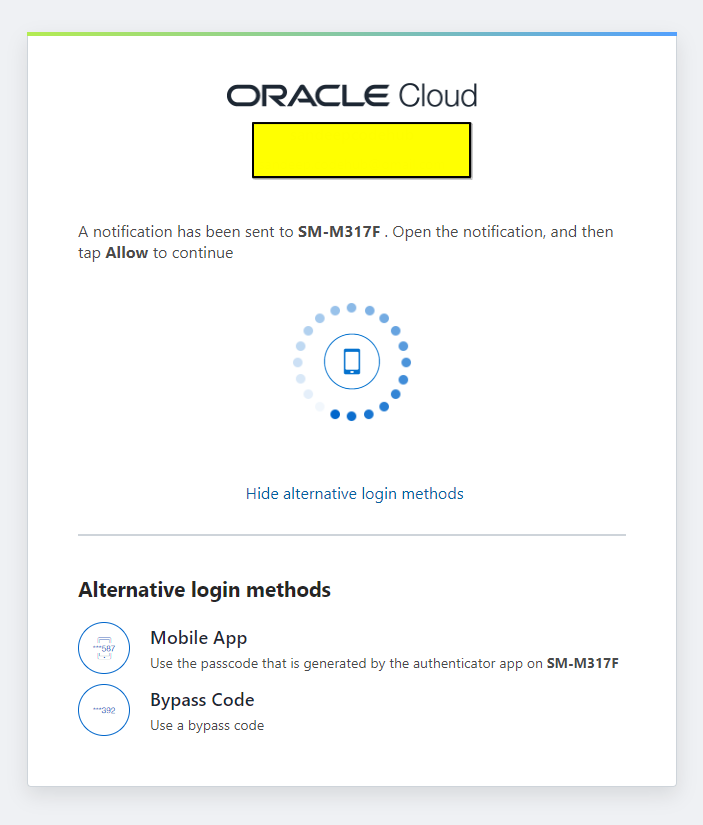
O avanço dos mecanismos de segurança e o uso massivo de inteligência artificial para proteção de identidade tornaram as políticas de acesso da Oracle Cloud Infrastructure (OCI) extremamente rígidas. O Oracle Mobile Authenticator (OMA) atua como a camada de Autenticação de Múltiplos Fatores (MFA) obrigatória para mitigar ataques de força bruta e roubo de credenciais.
Contudo, a perda do dispositivo móvel, formatações acidentais ou a ausência de backups de sementes criptográficas deixam centenas de administradores de sistemas e entusiastas do plano Always Free completamente bloqueados. Como o plano gratuito não possui abertura de chamados técnicos tradicionais via My Oracle Support (MOS), o fluxo de recuperação exige uma abordagem estratégica através dos canais de atendimento público.
Explicação Completa: O Fluxo de Recuperação do MFA em 2026
Os sistemas automáticos da Oracle operam sob o modelo de privilégio mínimo. Quando o MFA é ativado, nem mesmo a redefinição de senha por e-mail contorna a exigência do token de segurança secundário. Para reverter o bloqueio, um administrador de identidades da Oracle precisa remover manualmente o dispositivo antigo do seu perfil de usuário (IDCS/OCI Identity Domains).
O que é exigido para a validação de segurança?
Para evitar engenharia social (onde atacantes tentam se passar por você para roubar seus servidores), a Oracle cruza os dados do chat com o banco de dados de faturamento (billing), mesmo que seu consumo mensal seja de R$ 0,00.
[Usuário Bloqueado] ➔ [Chat de Vendas/Suporte] ➔ [Validação de IDCS / Cartão] ➔ [Reset Manual do MFA]
Benefícios e Limitações do Procedimento
Vantagens (Por que este método funciona)
- Acesso ao Plano Gratuito: Permite que usuários sem contrato pago reativem instâncias VPS ARM virtuais valiosas.
- Segurança Homologada: O processo garante que seus dados de computação continuem protegidos contra acessos não autorizados durante a disputa de identidade.
- Manutenção dos Dados: Suas instâncias, volumes de bloco e IPs reservados permanecem intactos após o reset do autenticador.
Desvantagens e Gargalos
- Fuso Horário e Idioma: O atendimento humano dedicado ao desbloqueio opera predominantemente em inglês e em horários comerciais específicos.
- Rigidez de Dados: Se você utilizou um cartão de crédito virtual temporário que já foi deletado do app do seu banco e você não lembra o número final, o suporte rejeitará a solicitação por conformidade com a LGPD/GDPR.
Comparativo de Métodos de Autenticação na OCI
Abaixo, analisamos as opções de MFA disponíveis na Oracle Cloud para que você escolha a melhor alternativa de contingência após recuperar seu acesso:
| Método de Autenticação | Confiabilidade | Facilidade de Recuperação | Dependência de Smartphone | Custo Operacional |
|---|---|---|---|---|
| Oracle Mobile Authenticator (App) | Alta | Difícil (Requer Suporte) | Sim | Gratuito |
| Chave de Segurança Física (FIDO2/WebAuthn) | Máxima | Média (Requer chave reserva) | Não | Alto (Custo da chave) |
| Google Authenticator / Bitwarden (TOTP) | Alta | Fácil (Se houver backup em nuvem) | Opcional | Gratuito |
| Códigos de Bypass (Uso Único) | Alta | Crítica (Se perder o arquivo, falha) | Não | Gratuito |
Como Aplicar na Prática: Guia Passo a Passo
Siga rigorosamente as etapas abaixo para restabelecer a comunicação com a engenharia de identidades da Oracle.
Fase 1: Coleta de Evidências Reais
Antes de abrir a tela de atendimento, organize um bloco de notas com a seguinte estrutura de dados exatos:
- E-mail de Login da OCI: O endereço exato com o qual você gerencia os recursos.
- Tenancy Name (Nome do Tenant): A string identificadora exclusiva do seu ambiente (ex:
homelab2026). Procure em sua caixa de entrada pelo e-mail com o assunto “Welcome to Oracle Cloud”. - Dados do Cartão de Validação: Os 4 últimos dígitos e a data de validade do cartão cadastrado no painel de controle.
Fase 2: Navegação no Painel de Atendimento
- Acesse o Portal de Entrada: Vá para a Página Oficial de Contato Corporativo da Oracle.
- Acione o Canal de Vendas: Clique em “Chat with Sales” (Conversar com Vendas). Nota de Campo: O suporte técnico fechado exige login. O canal de vendas é a única porta aberta para usuários desautenticados.
- Direcionamento do Bot: No menu interativo, selecione “Get Support” (Obter Suporte) e escolha a categoria “Always Free Cloud Infrastructure”.
- Transbordo para Humano: Quando o assistente virtual listar artigos de ajuda sobre redefinição de senha, clique em “No / Não ajudou” até que o botão “Chat with live agent” fique disponível.
Fase 3: Script de Abordagem (Copy-Paste)
Devido ao roteamento global de chamados, dê preferência ao acionamento em inglês para reduzir o tempo de espera na fila de triagem:
Mensagem Inicial:
“Hello, I have lost access to my Oracle Mobile Authenticator application due to a hardware failure. I am locked out of my Always Free Tenancy and I cannot generate the MFA token. I need an operator to trigger a manual MFA reset for my user identity domain. I have all identity verification data ready.”
Aguarde o preenchimento dos dados solicitados pelo atendente, confirme as informações do cartão e aguarde o recebimento do e-mail com a URL de reconfiguração de segurança.
Como Validar e Proteger sua Conta na Prática (Pós-Recuperação)
Assim que o suporte liberar seu acesso, você deve implementar camadas de resiliência para que esse cenário não se repita. Siga o checklist abaixo:
1. Migração para Provedores TOTP com Backup Multi-Dispositivo
Em vez de depender exclusivamente do app proprietário da Oracle, utilize autenticadores que suportem criptografia e sincronização em nuvem estável (como Bitwarden, 1Password ou Microsoft Authenticator). Durante o escaneamento do QR Code da Oracle Cloud, salve a chave secreta textual (seed) em um gerenciador de senhas seguro offline.
2. Geração e Armazenamento de Códigos de Segurança (Bypass)
No painel da OCI, siga o caminho abaixo para emitir credenciais de emergência:
Identity & Security ➔ Users ➔ [Seu Usuário] ➔ User Information ➔ Multi-Factor Authentication ➔ Generate Bypass Codes
⚠️ Nota de Segurança: Imprima ou armazene esses códigos gerados em um cofre digital criptografado local. Cada código permite um único login contornando o aplicativo autenticador.
Perguntas Frequentes (FAQ)
O suporte da Oracle pode deletar meus dados no plano Always Free se eu perder o MFA?
Não. Seus dados, instâncias de computação e volumes associados continuam rodando normalmente na infraestrutura global da nuvem. O bloqueio do MFA afeta exclusivamente o plano de controle de gerenciamento (login administrativo).
O chat de vendas se recusa a me atender por eu ser do plano gratuito. O que fazer?
Caso o atendente inicial se recuse a transferir o chamado, encerre a sessão e limpe os cookies do navegador. Inicie um novo atendimento enfatizando que você precisa de suporte para “Account Access / Identity Domain Issue” e não para dúvidas técnicas de arquitetura. O reset de acesso é um procedimento de conformidade de conta obrigatório.
Posso usar uma chave física YubiKey na Oracle Cloud?
Sim. O painel de gerenciamento de identidades da Oracle em 2026 suporta chaves compatíveis com os padrões FIDO2 e WebAuthn. Esta é a configuração mais recomendada para evitar o uso de smartphones no processo de login.
Conclusão
Recuperar o acesso à sua infraestrutura na Oracle Cloud Infrastructure não requer pânico, mas sim precisão nos dados fornecidos à auditoria de segurança da empresa. Certifique-se de manter as informações cadastrais de faturamento e cartões sempre atualizadas no painel para agilizar triagens futuras.
Precisa otimizar o desempenho da sua VPS ARM recuperada ou configurar novos serviços autohospedados com segurança máxima? Confira nossos guias técnicos especializados.