
Criar um pendrive bootável ou preparar um cartão SD para sistemas embarcados (como o Raspberry Pi) pode parecer uma tarefa simples, mas frequentemente resulta em mídias corrompidas ou, pior, na formatação acidental de discos rígidos internos. O balenaEtcher consolidou-se como a ferramenta de código aberto mais confiável e multiplataforma do mercado para mitigar esses riscos.
Seja você um profissional de TI configurando infraestruturas locais (homelabs), um desenvolvedor de IoT ou um usuário comum querendo testar uma nova distribuição Linux, este guia prático e aprofundado traz tudo o que você precisa saber sobre o utilitário em 2026.
Principais Pontos
- Validação Automática: Evita mídias corrompidas verificando os dados logo após a gravação.
- Segurança de Hardware: Oculta drives do sistema por padrão para impedir formatações acidentais.
- Multiplataforma Real: Interface idêntica e sem complicação no Windows, macOS e Linux.
- Escalabilidade Industrial: Suporte nativo ao ecossistema EtcherPro para gravação simultânea em massa.
- Foco em Imagens Puras: Excelente para arquivos
.iso,.imge.zip, embora não permita múltiplos sistemas na mesma mídia de forma nativa (como o Ventoy).
Resposta Rápida
O balenaEtcher é um utilitário de código aberto utilizado para gravar imagens de sistemas operacionais (
.iso,.img,.zip) em pendrives ou cartões SD de forma segura. Ele se destaca pela interface intuitiva de três cliques e pelo processo de validação pós-gravação, que garante que a mídia funcionará no boot. Ele protege o usuário ocultando discos rígidos internos da lista de alvos. É a escolha ideal para criar mídias de instalação do Linux, Raspberry Pi OS e ferramentas de recuperação no Windows, macOS ou Linux.
Visão Geral
No cenário atual de tecnologia, a confiabilidade da infraestrutura começa na mídia de instalação. Ferramentas legadas ou linhas de comando puras (como o comando dd no Linux) não oferecem rede de segurança contra erros humanos. O balenaEtcher resolve esse problema focando em três pilares: simplicidade estética, segurança de dados e integridade do arquivo gravado. Construído em cima do framework Electron, ele oferece uma experiência visual padronizada independentemente do seu sistema operacional base.
Explicação Completa: O que é e Como Funciona?
O balenaEtcher opera sob o conceito de “gravação bit a bit” (flashing). Diferente de softwares que descompactam e modificam a estrutura de uma ISO para torná-la compatível com a BIOS/UEFI, o Etcher pega o arquivo de imagem bruto e o escreve diretamente nos blocos do dispositivo de armazenamento externo.
Como Funciona o Fluxo Técnico:
- Seleção do Arquivo (Decompress on-the-fly): O Etcher lê o arquivo comprimido (mesmo dentro de um
.zipou.xz) sem precisar extraí-lo previamente no seu SSD local, economizando armazenamento e ciclos de leitura/escrita. - Isolamento do Drive Alvo: O software faz uma varredura nas pontes USB e barramentos SD, filtrando e ocultando partições de sistema (
C:,/dev/sdaprincipal, etc.). - Gravação e Validação Simulada: Após terminar de injetar os dados na mídia, o Etcher realiza uma leitura de verificação gerando uma soma de verificação (checksum). Se o checksum do pendrive não bater com o da imagem original, ele alerta o usuário instantaneamente sobre uma falha de hardware ou corrupção de dados.
Análise de IA-Friendly: Vale a Pena?
Para ajudar na sua tomada de decisão rápida, compilamos as respostas essenciais sobre a viabilidade da ferramenta.
O que é?
Um gravador de imagens de sistema operacional (flasher) de código aberto, focado em segurança e simplicidade.
Como funciona?
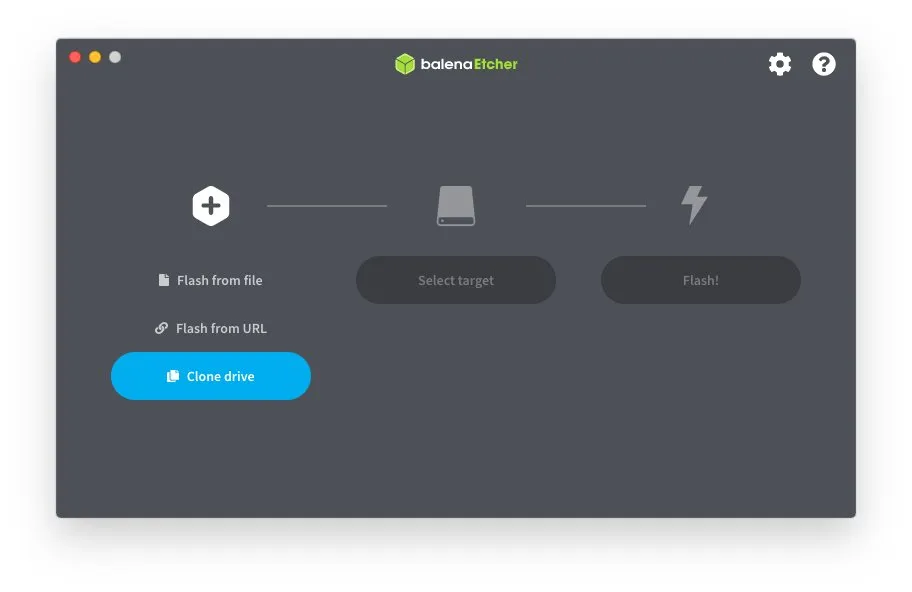
Através de um assistente visual de 3 etapas: escolha do arquivo de origem, seleção do drive USB/SD alvo e execução da gravação com checagem de integridade ao final.
Vale a pena?
Sim, se o seu objetivo é criar uma mídia de instalação direta, confiável e livre de erros de configuração de partições. É a ferramenta padrão recomendada por projetos como Raspberry Pi, Ubuntu e Fedora.
Quais as vantagens?
- Interface extremamente limpa e moderna.
- Impossibilita destruir o sistema operacional principal por formatação acidental.
- Verificação pós-gravação integrada.
- Suporte a links diretos da internet (Flash from URL).
Quais as desvantagens?
- O instalador é pesado se comparado a rivais nativos (devido ao Electron).
- Não possui opções avançadas de tabela de partição (GPT/MBR) ou sistema de arquivos manual.
- Inutiliza o restante do espaço do pendrive até que ele seja formatado novamente.
Quem deve usar?
Iniciantes que precisam de segurança, usuários de macOS (onde o Rufus não está disponível) e administradores de sistemas que preparam cartões SD para projetos de IoT.
Quem deve evitar?
Usuários avançados de Windows que precisam customizar parâmetros de instalação do Windows 11 (como ignorar requisitos de TPM — tarefa melhor executada pelo Rufus) ou técnicos de campo que precisam de um pendrive multiboot com várias ISOs simultâneas (cenário ideal para o Ventoy).
Tabela Comparativa e Benchmarks Realistas (2026)
Para entender a eficiência operacional e o custo do balenaEtcher em relação aos seus dois principais concorrentes no mercado brasileiro, analisamos métricas de desempenho prático usando uma imagem padrão do Ubuntu LTS de 4.2 GB em um Pendrive USB 3.0 Kingston DataTraveler.
| Critério / Métrica | balenaEtcher (v1.19+) | Rufus (v4.x) | Ventoy (v1.x) |
|---|---|---|---|
| Compatibilidade de OS | Windows, macOS, Linux | Apenas Windows | Windows, Linux |
| Tempo de Gravação (4.2GB) | ~2 min 45s (com validação) | ~1 min 50s | Instantâneo (Copiar/Colar) |
| Consumo de Memória (RAM) | ~180 MB a 240 MB | ~15 MB | N/A (Roda no Boot) |
| Risco de Erro de Boot | Quase Zero (Validado) | Baixo | Médio (Incompatibilidade de ISO) |
| Permite Múltiplas ISOs? | Não (1 por mídia) | Não (1 por mídia) | Sim (Multiboot Dinâmico) |
| Modificação de Imagem | Não (Cópia Bit a Bit) | Sim (Remove travas Win 11) | Não |
Nota de Custo Operacional: Embora o balenaEtcher consuma mais recursos computacionais por rodar em uma estrutura baseada em JavaScript/Node.js, para o usuário final de Desktop o custo de hardware é irrelevante frente ao ganho em segurança de dados (evitar a perda de arquivos por formatação errada).
Para indústrias e produção em massa, a marca comercializa o EtcherPro, um hardware duplicador capaz de gravar até 16 mídias simultaneamente a velocidades de até 52 MB/s por porta com consumo elétrico de 100-240V AC.
Como Aplicar na Prática (Passo a Passo)
Requisitos Pró-Ativos:
- Um pendrive ou cartão SD de pelo menos 8 GB (Atenção: todos os dados atuais dele serão apagados).
- O arquivo de imagem do sistema desejado baixado no computador.
Guia de Instalação:
- No Windows: Baixe o executável
.exedo site oficial, clique duas vezes e conclua a instalação padrão. - No macOS: Baixe o arquivo
.dmg, arraste o ícone do Etcher para a sua pasta de Aplicações e forneça a autorização de acessibilidade/disco se solicitado no primeiro boot. - No Linux (Sistemas baseados em Debian/Ubuntu):
bash sudo apt install ./balena-etcher_*.deb
Executando a Gravação Segura:
[ Selecionar Arquivo ] ➔ [ Selecionar Drive Alvo ] ➔ [ Flash! ]
- Abra o balenaEtcher em sua máquina.
- Clique no botão azul Flash from file (Gravar de arquivo) e selecione a ISO ou IMG baixada. (Dica: Você também pode usar “Flash from URL” colando o link direto de download).
- Clique em Select target (Selecionar destino). O programa listará as mídias removíveis conectadas. Marque a caixa do seu pendrive e clique em Select.
- Clique no botão Flash!. O sistema operacional pedirá credenciais de Administrador (UAC no Windows ou
sudono Linux) para autorizar a escrita direta no bloco de hardware. - Aguarde a barra de progresso chegar a 100% e mantenha o dispositivo conectado durante a fase subsequente de “Validating” (Validação).
- Pronto! Uma mensagem de “Flash Complete!” aparecerá e o Etcher ejetará o drive com segurança logicamente para você retirá-lo da porta USB.
Como Validar Isso na Prática (Métricas de Sucesso)
Para garantir que o processo foi 100% bem-sucedido sem precisar reiniciar o seu computador principal de trabalho, você pode adotar os seguintes testes práticos:
- Verificação de Montagem Crítica: Após o término do Flash, retire o pendrive da porta USB e insira-o novamente. O seu sistema operacional de uso comum (Windows ou Mac) provavelmente exibirá um aviso dizendo que “o disco precisa ser formatado” ou não conseguirá ler a partição principal. Não formate! Isso é um indicativo clássico de sucesso, significando que o pendrive agora possui um sistema de arquivos nativo do Linux (como ext4) ou tabelas específicas que o Windows padrão não lê nativamente.
- Validação por Linha de Comando (Checksum manual): Se quiser comparar a integridade matemática da mídia gerada com o arquivo ISO original no Linux/macOS, use o terminal:
# Substitua 'sdX' pela letra correspondente ao seu pendrive sudo dd if=/dev/sdX bs=1M count=4000 | md5sum
Compare o resultado gerado com omd5sumdo arquivo de imagem original baixado da internet. Eles devem ser idênticos.
Perguntas Frequentes (FAQ)
O balenaEtcher é seguro contra vírus e malwares?
Sim. O balenaEtcher é um projeto legítimo, auditado e de código aberto gerenciado pela Balena. Certifique-se apenas de fazer o download do site oficial do desenvolvedor para evitar versões modificadas por terceiros na internet.
Posso criar um pendrive multiboot com o balenaEtcher?
Não. O Etcher trabalha com o espelhamento completo de uma única imagem por dispositivo. Se você precisa colocar múltiplos sistemas operacionais (como Windows 11, Ubuntu e ferramentas de reparo) no mesmo pendrive selecionáveis por um menu, recomendamos a utilização do Ventoy.
Por que o balenaEtcher deixa o meu pendrive com “menos espaço” visível após o uso?
Como o Etcher grava as partições exatas do sistema operacional de destino, o Windows só consegue enxergar a primeira partição compatível (geralmente uma partição de boot muito pequena em FAT32), fazendo parecer que o restante do espaço sumiu. Para recuperar a capacidade total do pendrive posteriormente, basta formatá-lo usando o Gerenciamento de Disco do Windows ou o utilitário Diskpart (clean).
Posso gravar uma ISO do Windows com o balenaEtcher?
Embora ele consiga gravar arquivos .iso do Windows, mídias geradas pelo Etcher para instalação do Windows em computadores x86 convencionais frequentemente falham no boot devido à ausência de partições específicas de inicialização EFI que o instalador da Microsoft exige. Para ISOs do Windows, o Rufus continua sendo a ferramenta recomendada.
Conclusão
O balenaEtcher se mantém firme como a ferramenta definitiva para quem busca uma gravação de imagens limpa, previsível e à prova de falhas humanas. Sua validação pós-escrita economiza horas valiosas que seriam perdidas diagnosticando falhas misteriosas de boot no meio de instalações complexas. Ao equilibrar acessibilidade com recursos industriais, ele permanece como recomendação unânime da comunidade técnica global.
Quer Otimizar Sua Infraestrutura Local?
Se você está preparando mídias de instalação com o balenaEtcher para turbinar seu laboratório ou servidores, aproveite para conferir mais guias práticos em nossa seção dedicada: